
SQL Server Installation
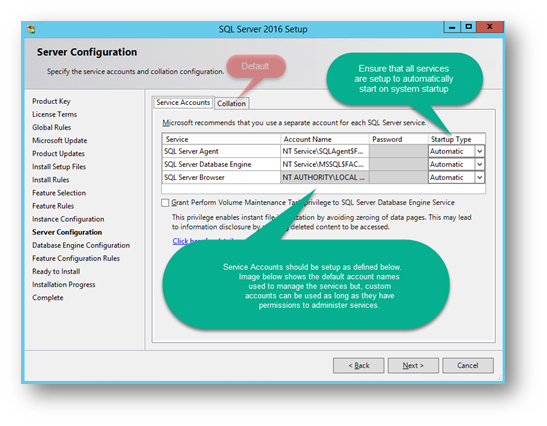

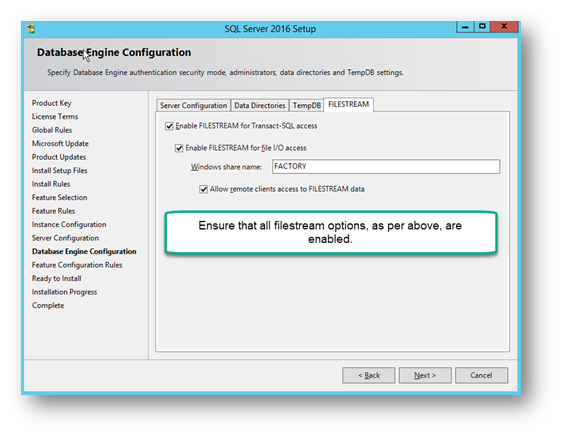
- Launch SQL Server Configuration Manager for your database version and check settings below.
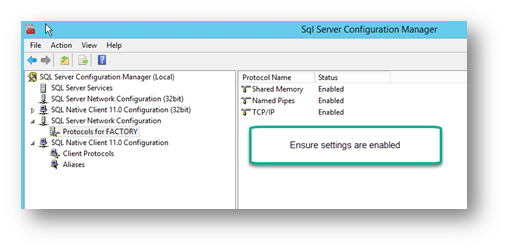
- Create 2 AD Groups for Session Access.
-
Recommended user grouping.
G_SR_DataReader
All users that will access the database to view and load sessions, into A9, A10 or via the API. These users will not be able to record data in to the database.
G_SR_DataWriter
Same access as G_SR_DataReader group with the added capability of being able to record data into the database. These users will be able to
Create sessions, load sessions and append data, associate sessions withing the database (i.e. emulate ssn - ssv relationship), via the API as well as start recorders in A10, A9 and SQL Race Server.
ATLAS session database (SQL Race) Installation.
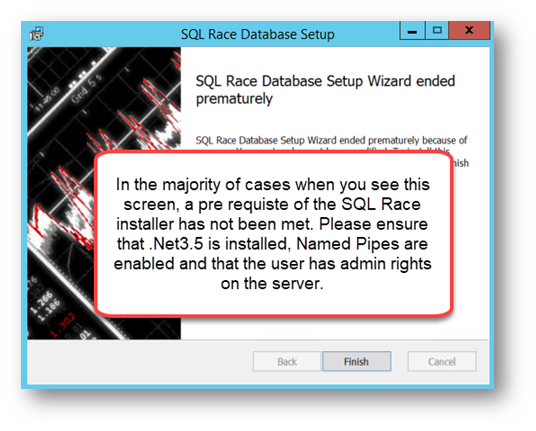
- Prior to installing SQL Race please ensure that .Net3.5 is installed.
- Uninstall the previous version of “SQL Race”, if it existed using the control panel.
- Download the latest SQL Race installer from
Portal SQL Race Installer location onto the local machine in a local folder. E.g. C:\Temp\ - Check that .Net 3.5 is installed, otherwise install.
- Open a CMD prompt in admin mode.
- In the CMD prompt, navigate the location of the installer
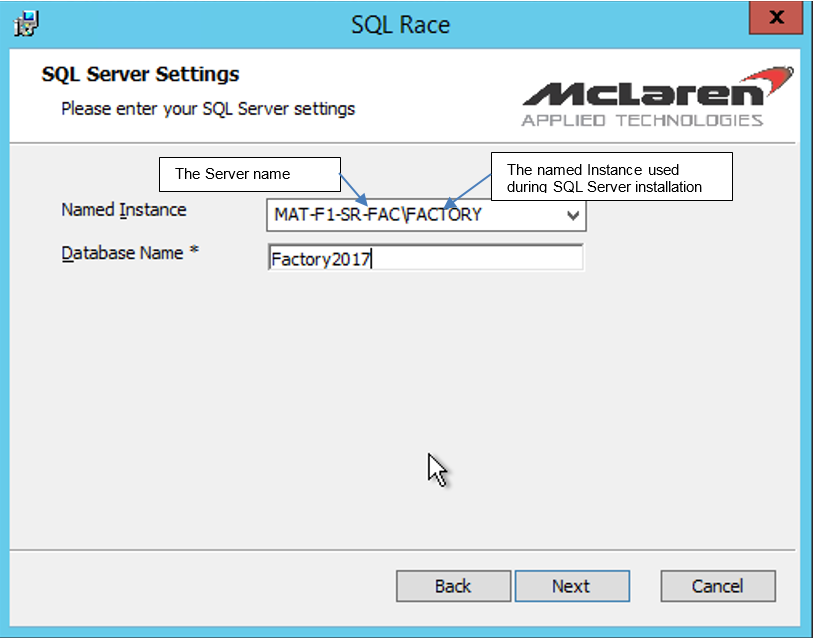
- In the CMD prompt, if you used a named instance (e.g. FACTORY) during SQL Server installation, type in the following:-
msiexec /i MESL.SQLRace.Installer.msi SQLSERVER=MAT-F1-SR-FAC SQLINSTANCE=FACTORY SQLDATABASE=Factory2017 /L*V C:\Temp\Install.log
otherwise type in the following:-
msiexec /i MESL.SQLRace.Installer.msi SQLSERVER=MAT-F1-SR-FAC SQLDATABASE=Factory2017 /L*V C:\Temp\Install.log
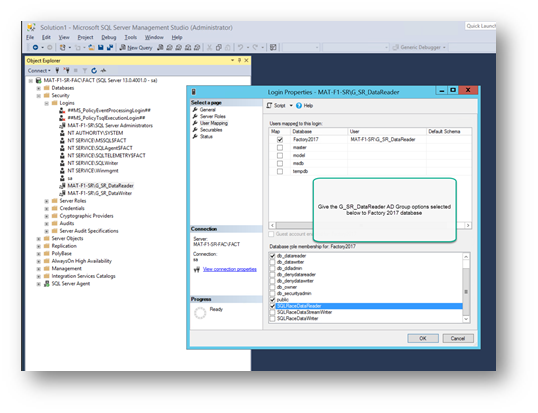
- Database security setup for reader and writer access groups.



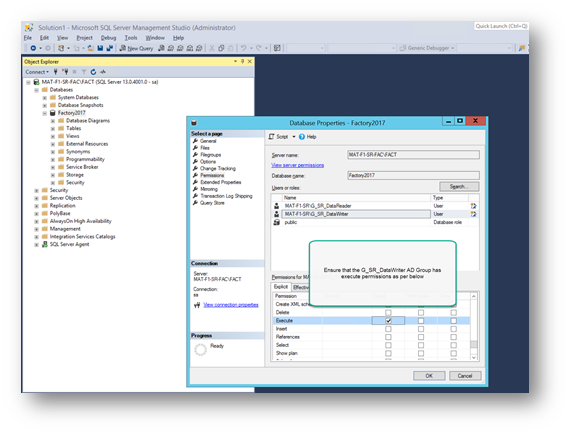
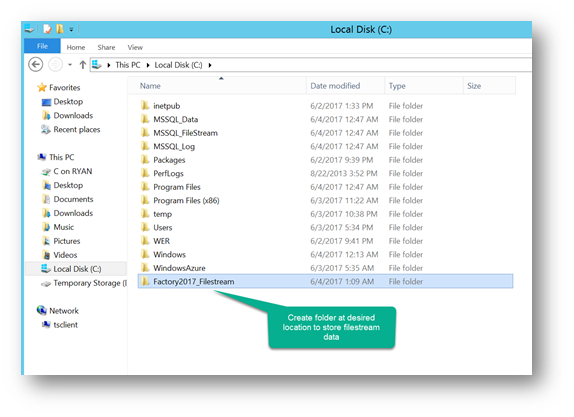
- SQL Race Filestream folder creation and access rights. Please note that this is not the same folder that was setup for SQL Server Filestream access.
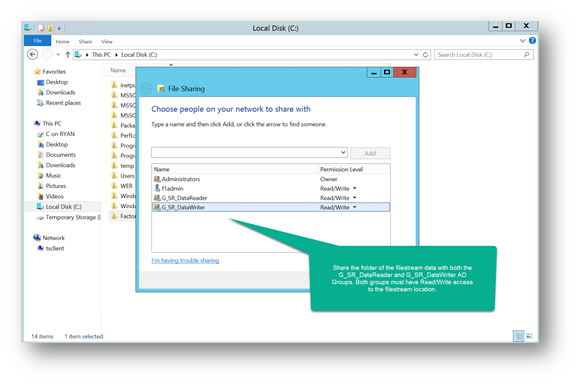
Database should now be accessible through ATLAS 10 and users should be able to view and record data according to their group allocation.
Troubleshooting
Symptom
During installation, I receive error 2878
Suggested Resolution
Filestream access is not enabled in SQL Server
Symptom
I've enabled Filestream access, checked the firewall for port 1433, ensured 1433 is turned on, checked named pipe access is on and still getting error 2878.
Suggested Resolution
Try running the installer from command line with following switches.
SQLINSTANCE=Default SQLDATABASE=SQLRACE01 /i MESL.SQLRace.Installer.msi
Symptom
During installation I can't see the database server
Suggested Resolution
Check the user account you are using matches a Login in SQL Server and has the dbo role. This is required to create the database and schema.
Symptom
I can't connect ADS/RDS to the SQL Race database - the option is greyed out (Tools, SQL Race, Connection Manager)
Suggested Resolution
You require a license for SQL Race to be able to do this. Note that an ATLAS 10 license includes this functionality.
Symptom
I can't connect ADS/RDS/ATLAS to the SQL Race database from another machine - it doesn't see the database
Suggested Resolution
Run ATLAS 10 on the same machine as SQ Race and confirm it works. If it does you have either a license (no SQL Race license) or a firewall issue. Use Wireshark to demonstrate that the packets are being sent but not received.
Comments
0 comments
Please sign in to leave a comment.